Experian's powerful intuitive address validation tool uses data from over 245 countries to deliver validated, formatted and enriched addresses. Our solution for the Microsoft Power Platform offers multiple ways of performing address validation:
The workflow for each of these approaches is detailed in the tabs below.
Our Autocomplete search type is designed to provide accurate suggestions in real-time, that continually update as the user types. The user should provide the address elements in the order that they would appear on an envelope.
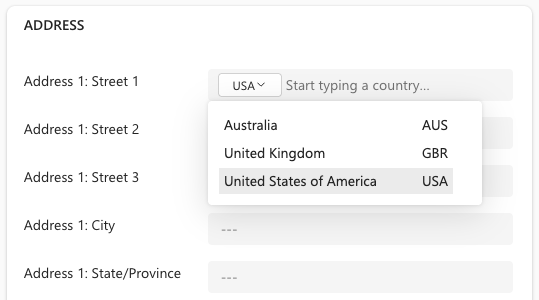
The user selects the first address field and a country dropdown appears within the field with the default country automatically selected.
If the user requires a different country, they can choose a country from the dropdown. When the country dropdown is open the user can start typing the first few letters of the country name or a 3 character ISO code to quickly jump to the required country.
Keyboard shortcuts
Once a country is chosen the user starts to type into the address field. Suggestions will be displayed in a dropdown.
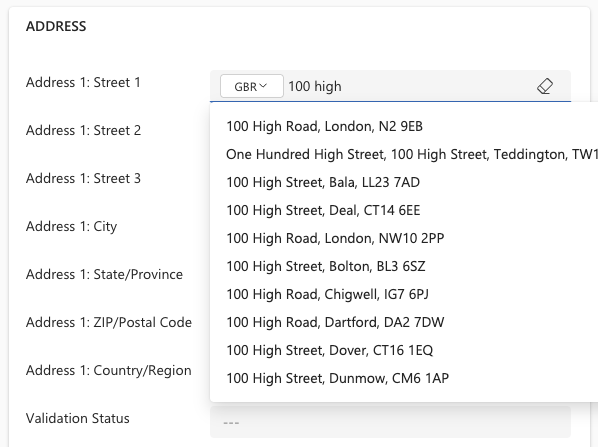
The user can then either:
When a selection is made, the final address is displayed in the fields configured on the form.
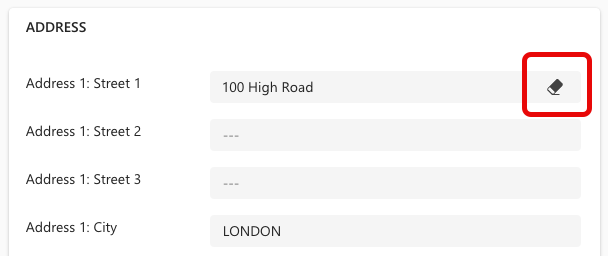
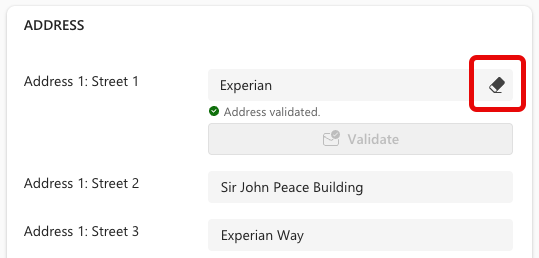
If the user wishes to clear all the address fields, and any other associated mapped fields, the Eraser icon to the right of the first address field can be clicked.
From v4.5.0 of the app, if you're searching in the United Kingdom you have the option of typing in either a regular postal address or a what3words 3 word address.
United Kingdom only
The user selects the first address field and a country dropdown appears within the field with the default country automatically selected. Country selection is detailed in the Autocomplete tab.
Providing the chosen country is the United Kingdom, the user starts typing a what3word address into the single text box. Once a partial 3 word address is detected from the first letter of the third word, a list of matching 3 word addresses is displayed.
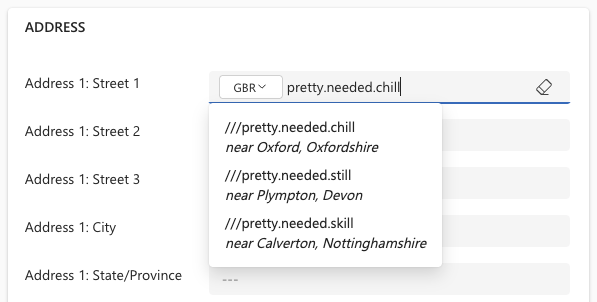
The user can then select one of the what3words addresses to trigger a search for all postal addresses within a 100m radius of the what3words address.
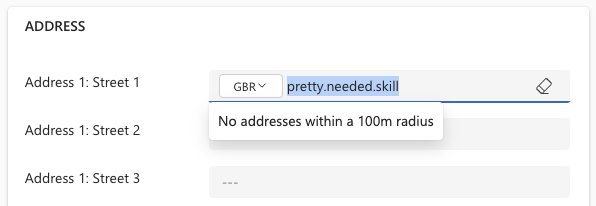
Either no addresses are found:
Or a picklist of postal addresses is displayed:
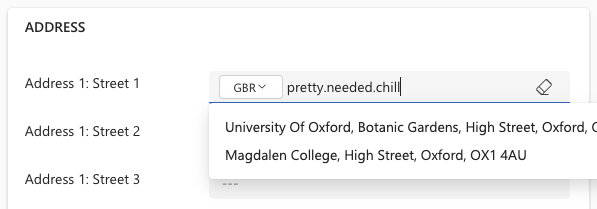
The user then selects an address from the list. This address will automatically be formatted in the correct fields configured on the form.
If enrichment data has been set up to include the what3words dataset the configured data will be retrieved and mapped to the chosen object fields. This could include the what3words address itself or the latitude and longitude for the what3word address.
Additional license for what3words Enrichment dataset
The Validate search type is optimized for users entering the complete address, as it would appear on an envelope.
Supported countries
The user selects the first address field and a country dropdown appears within the field with the default country automatically selected. Country selection is detailed in the Autocomplete tab.
Once a country is chosen the user types the full address into the address fields. There is no need to enter the country. As soon as one field is completed the status will be displayed as manually updated and the Validate button will become active.
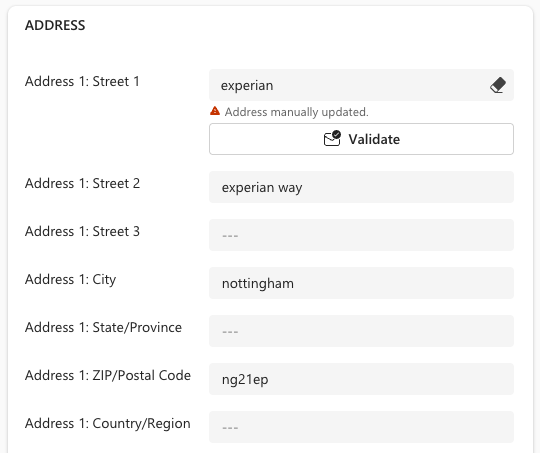
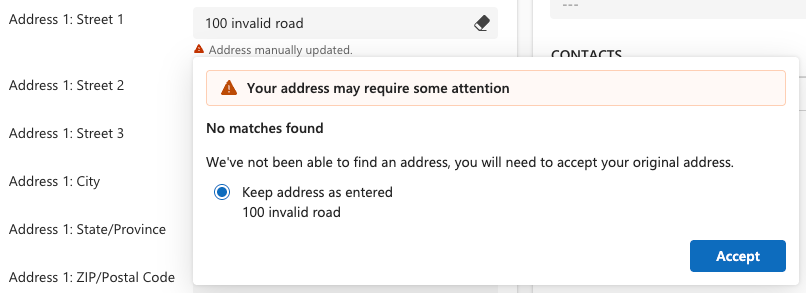
Once all fields have been completed, the user clicks the Validate button, which will send the full address to our API and result in 4 possible outcomes:
A verified match is found. The matched address will be shown to the user to confirm any corrected formatting/spelling errors and the addition of any missing address elements. The user can choose to accept the suggested address or keep their original address.
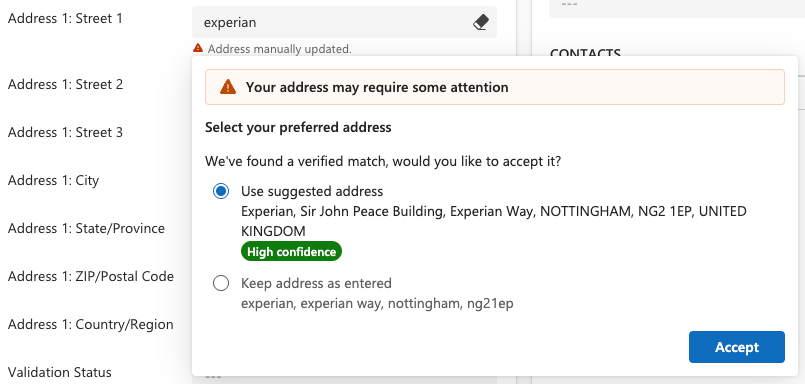
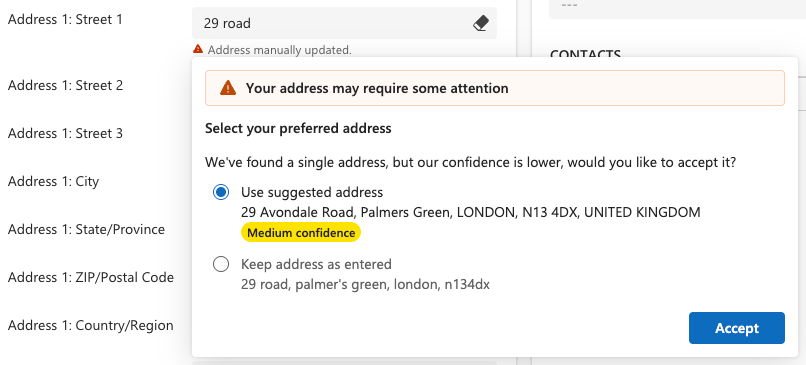
More interaction required from the user to confirm that the address is correct, as the confidence in the validity of this address is not high enough for it to be classified as a verified match.
A list of suggestions:
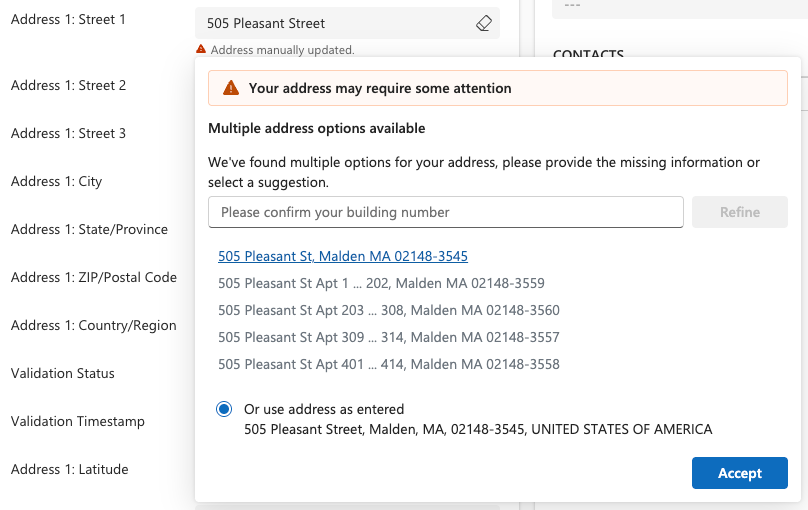
The user must accept an address suggestion or choose to use their address as entered and then click the Accept button. If they accept an address suggestion the status will be displayed as "Address validated". If they choose to use their address as entered, the status will remain "Address manually updated".
If the user wishes to clear all the address fields, and any other associated mapped fields, the Eraser icon to the right of the first address field can be clicked.
This hybrid approach is an option for validating full addresses, either those edited after a successful Autocomplete search or those manually added with Autocomplete bypassed.
The user workflow is initially identical to that described under the Autocomplete tab. After that the Validate button will appear only in the following scenarios:
When the user manually edits an address returned by Autocomplete and the status changes from "Address validated" to “Address manually updated”.
If the user chooses to bypass Autocomplete and manually enters all the fields (at least Street 1, City, Zip/Postcode).
The user workflow is then identical to that described under the Validate tab.
Supported countries